A voice form is a conversation instead of a page of boxes. Clients talk with OneFormAI, which asks your questions in its own words and fills in the form from what they say. Voice forms are in beta.
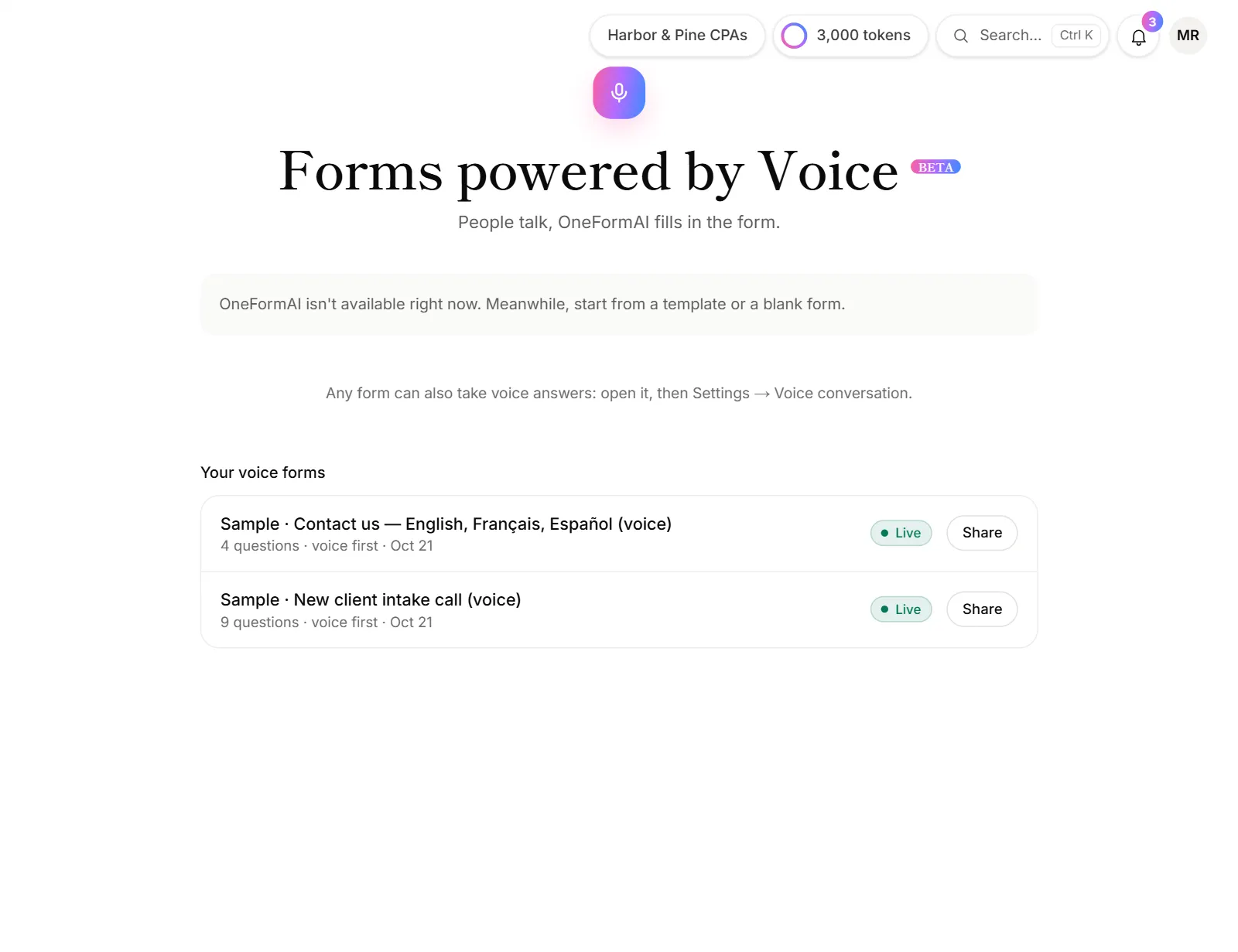
Build a voice form
- Click Create in the menu and choose Voice form.
- Describe the conversation, for example "A friendly intake call for new small-business clients". You can also attach a document, or tap an example such as Client intake call or Year-end check-in.
- Click Build. Answer OneFormAI's quick questions if it asks any, or click Skip.
- Check the list of things it will find out, then click Create voice form.
The form opens on its launch screen, where you can publish it and copy its link. See Publish a form.
Edit the conversation
Open the form from Forms. Voice forms have their own simple builder in the Build tab:
- Under How it starts, write the Headline and an optional Subtitle for the start screen. Under What should the conversation find out?, describe the goal in a sentence.
- Under Things to find out, edit each item's wording. Pick the kind of answer, such as A short answer, Yes or no or A date. Choose Something to tell them for information with no answer.
- Tap Needed or Optional on an item. The conversation doesn't finish until every needed item is answered.
- Click the arrow on an item for more: its options, This is their… (name, email, phone), and Only ask if….
- Click Add something to find out to add an item, and drag items to change the order.
- Under How it ends, write the Closing headline and Closing message.
Choose the look and the voice
- Brand colors above the preview set the glow and the orb. Pick a ready-made palette, or set three colors.
- Voice picks one of the AI voices, such as Marin · warm, natural or Cedar · calm, natural.
- Restart starts the preview conversation again. Tap the orb to talk to it for real. Preview answers are never saved.
Add voice to a typed form
Any form can take voice answers too:
- Open the form's Settings tab and turn on Voice conversation · Beta.
- Under How people start, choose Voice first (the link opens the conversation) or Their choice (the typed form, with an Answer with voice button).
- Set the goal, the Voice, the Longest reply and the Colors.
To go the other way, click Switch to typed in a voice form's builder. Nothing is lost.
Good to know
- Share it as a link or QR code from the Share tab, or put it on your website as an orb, a card or a button. See Put a form on your website.
- Voice uses OneAI Tokens as clients talk. See OneAI Tokens.
- Not everything carries over. Images, videos and placeholders from a typed form aren't used in a conversation, but they're kept if you switch back. Jumps and scoring still apply; edit them in the typed builder.
- Reports work the same way. Set them up in the Report tab.
Why do I see a lock on voice forms?
Voice forms aren't on your plan. The page names the plan that has them. If a form already has voice turned on, clients get the typed form until you upgrade. See Plans explained.