Tell OneFormAI what you need in plain words, and it writes the whole form: the questions, any logic or scoring, the welcome and thank-you screens, and the report or document each response should become. You can change everything afterwards.
Before you start
- Only owners and admins can create and edit forms.
- Building a form uses a few of your firm's OneAI Tokens. See OneAI Tokens.
Build a form
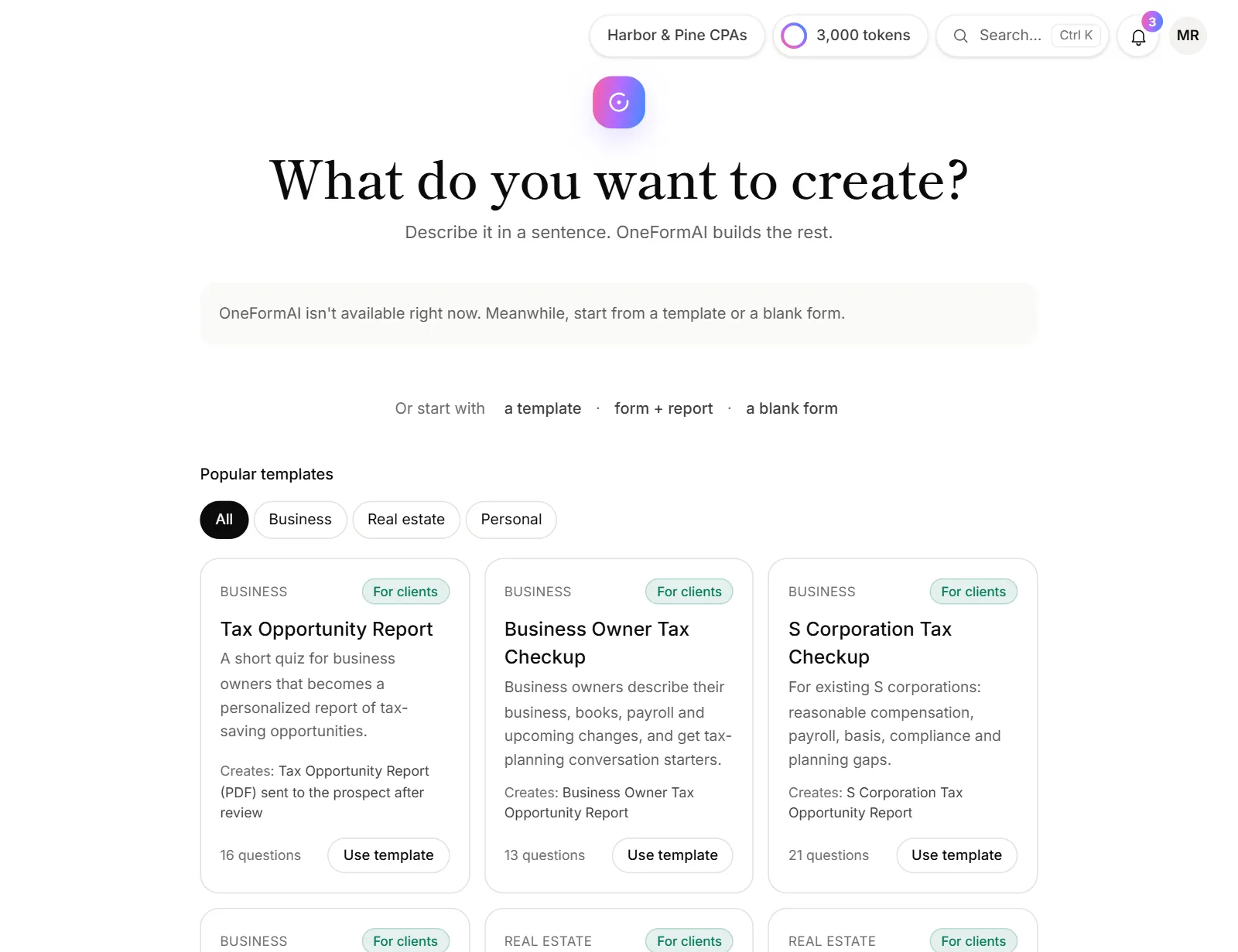
- Click Create in the menu and choose Form with OneFormAI. You land on What do you want to create?
- Describe the form in a sentence or two, for example "A year-end tax planning questionnaire for business owners that sends them a planning memo". Or tap one of the examples under the box.
- To build from a form you already use, click the paperclip (Attach files) and pick it. A photo, screenshot, PDF, Word file or spreadsheet all work. You can also drag files onto the box or paste a screenshot.
- Optional: tap Report: auto to choose whether each response becomes a report (on), never does (off), or lets OneFormAI decide (auto). Tap Dynamic if OneFormAI should pick the most useful questions for each person (see Dynamic forms).
- Click Build, or press ⌘ Enter (Ctrl Enter on Windows).
- If OneFormAI asks A few quick questions, tap an answer or type your own, then click Build my form. Click Skip to let it decide.
- Check the result under Your form is ready: the list of questions, plus chips such as Logic, Scoring or the number of endings.
- Click Create form. If OneFormAI also planned what happens after each response, the button says Build it.
OneForm opens the form's launch screen, where you see what's left to set up, publish it, and copy its link. See Publish a form.
Good to know
- It's a draft until you publish. Nobody can fill it in yet, so take your time in the builder.
- The report is finished in the Report tab. OneFormAI notes what the report should do; the full instructions are written the first time you open the form's Report tab. See Set up a report on a form.
- Prices and calls can be set right away. If your description mentions a paid report or a call, the result shows a price box and the call's length and place. Change them before you create the form, or later in the builder.
- Some things need setting up first. A list headed Before we build this shows anything the form needs, such as Stripe for a price or a calendar for a call. Click Build now, set up later to create the form anyway.
- Attached files aren't stored. They're read to build the form and then discarded.
- Change it with AI later. In the builder, click Edit with OneFormAI at the bottom (or press ⌘ I) and describe a change, like "Make it shorter" or "Add a question about payroll". Each change is one step you can undo.
Why can't I build a form with AI?
- "This month's OneAI Tokens are used up." Add tokens or upgrade in Billing, or wait for the 1st of the month. Templates and blank forms still work. See OneAI Tokens.
- "OneFormAI isn't available right now." Start from a template or a blank form meanwhile, and try AI again later.
- "Your role doesn't allow that." Reviewers and viewers can't create forms. Ask an owner or admin.
Why did OneFormAI stop early?
Very long descriptions, or many large attachments, can be too much for one build. Try a shorter description, or attach only the pages that hold the questions.