HubSpot gets every new client as a contact, with how likely they are to become a client. OneForm adds the contact, or updates them if they're already in HubSpot, and never makes duplicates.
Connect HubSpot
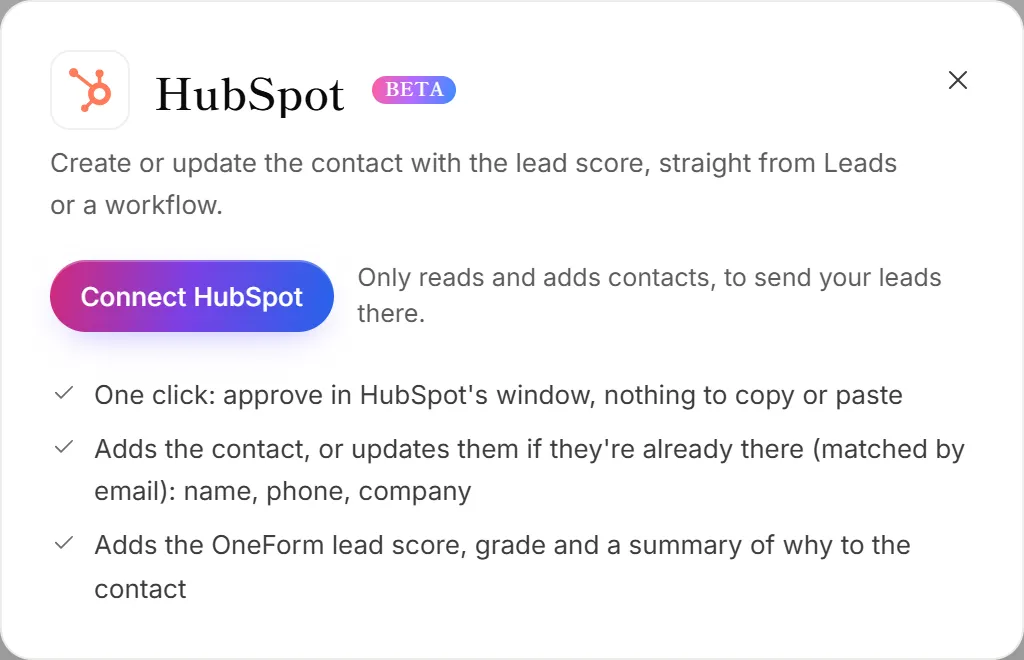
- Go to Integrations. The HubSpot panel opens.
- Click Connect HubSpot.
- Sign in to HubSpot, pick your account, and approve OneForm.
- You're back in OneForm, and HubSpot is connected.
What OneForm sends
OneForm matches each person by email. It fills in their name, phone and company, and adds three contact properties that OneForm creates in HubSpot the first time:
- OneForm lead score
- OneForm lead grade (Hot, Warm or Cold)
- OneForm lead summary (the score and why)
Empty answers never wipe what HubSpot already has.
Send leads from the Leads page
- Go to Leads. Tick the people to send, or filter the list. With nothing ticked, everyone shown is sent.
- Click Export.
- Under Send to your CRM or a sheet, choose your HubSpot account.
This needs full Leads on your plan, and an owner or admin. See Send leads to your CRM.
Send leads automatically
- Open Workflows and open the workflow you want.
- Click + (Add an action) and choose Send the lead to HubSpot.
- Under HubSpot account, choose the account.
- Under Which leads, choose Everyone, Warm & hot or Hot only.
- Click Test it, then Turn on (or Save and turn on).
What OneForm can do in HubSpot
Read and write contacts, and add its own contact properties. Nothing else. The access is stored encrypted.
Disconnect HubSpot
On the Integrations page, click Manage on the HubSpot card, then Disconnect. OneForm also gives up its access in HubSpot. The contacts it made stay in HubSpot.
Why wasn't a lead sent to HubSpot?
- They have no email. HubSpot matches contacts by email, so a lead with only a phone number is skipped.
- They didn't make the grade. The workflow action only sends the leads you chose under Which leads.
- HubSpot access was removed or expired. The HubSpot card moves to Needs attention; click Reconnect.