If your team talks in Discord, OneForm can post there too. A workflow sends a message to the channel you choose, with the key answers and a link to review the report.
Connect Discord
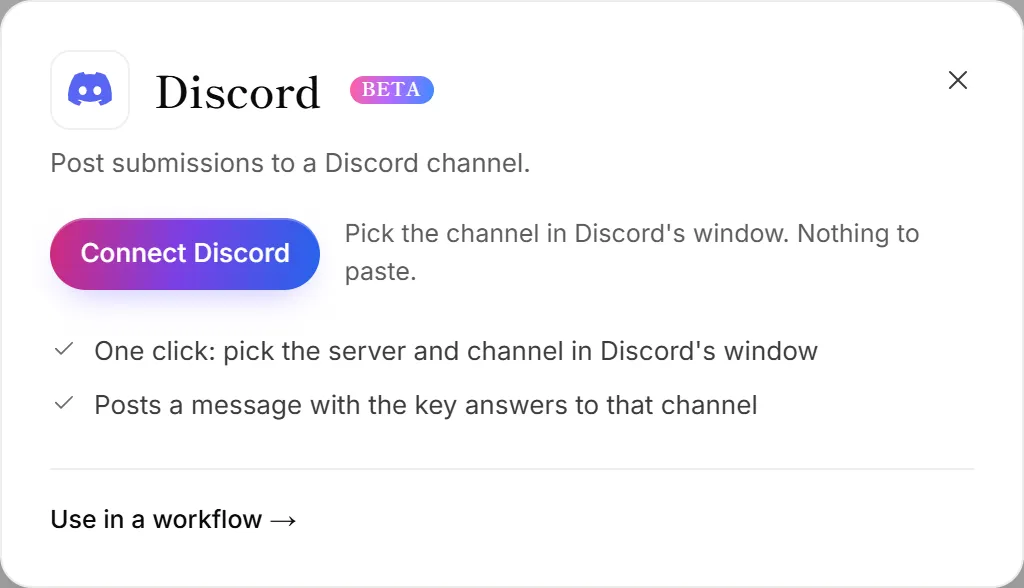
- Go to Integrations. The Discord panel opens.
- Click Connect Discord.
- In Discord's window, pick the server and the channel OneForm should post to.
- Click Authorize. You're back in OneForm, and the channel is connected.
Each Discord connection is one channel. To post to another channel too, open the Discord panel again, click Add another, and pick that channel.
Post a message from a workflow
- Open Workflows and open the workflow you want, or start one from the Discord alert for every submission recipe.
- Click + (Add an action) and choose Discord message.
- Under Discord connection, choose the channel.
- Write the Message. Use + Insert answer to add the client's name or any answer.
- Turn List the answers and Add a “Review the report” button on or off.
- Click Test it, then Turn on (or Save and turn on).
What OneForm stores
Only the address Discord gives OneForm for posting to that one channel, kept encrypted. OneForm can't read your server or messages, and its messages never ping anyone.
Disconnect Discord
On the Integrations page, click Manage on the Discord card, then Disconnect. To remove OneForm from the channel in Discord too, delete OneForm's webhook in the channel's settings there.
Why did Discord stop posting?
The channel or its webhook was deleted in Discord. The Discord card moves to Needs attention. Connect Discord again, pick a channel, and choose it in the workflow action. See An app stopped sending.