Connect an AI assistant to OneForm and ask it to do the work: build a form, look through responses, draft a report, set up a workflow. It works as you, never beyond your role, and anything that reaches a client needs your go-ahead.
Connect an AI tool
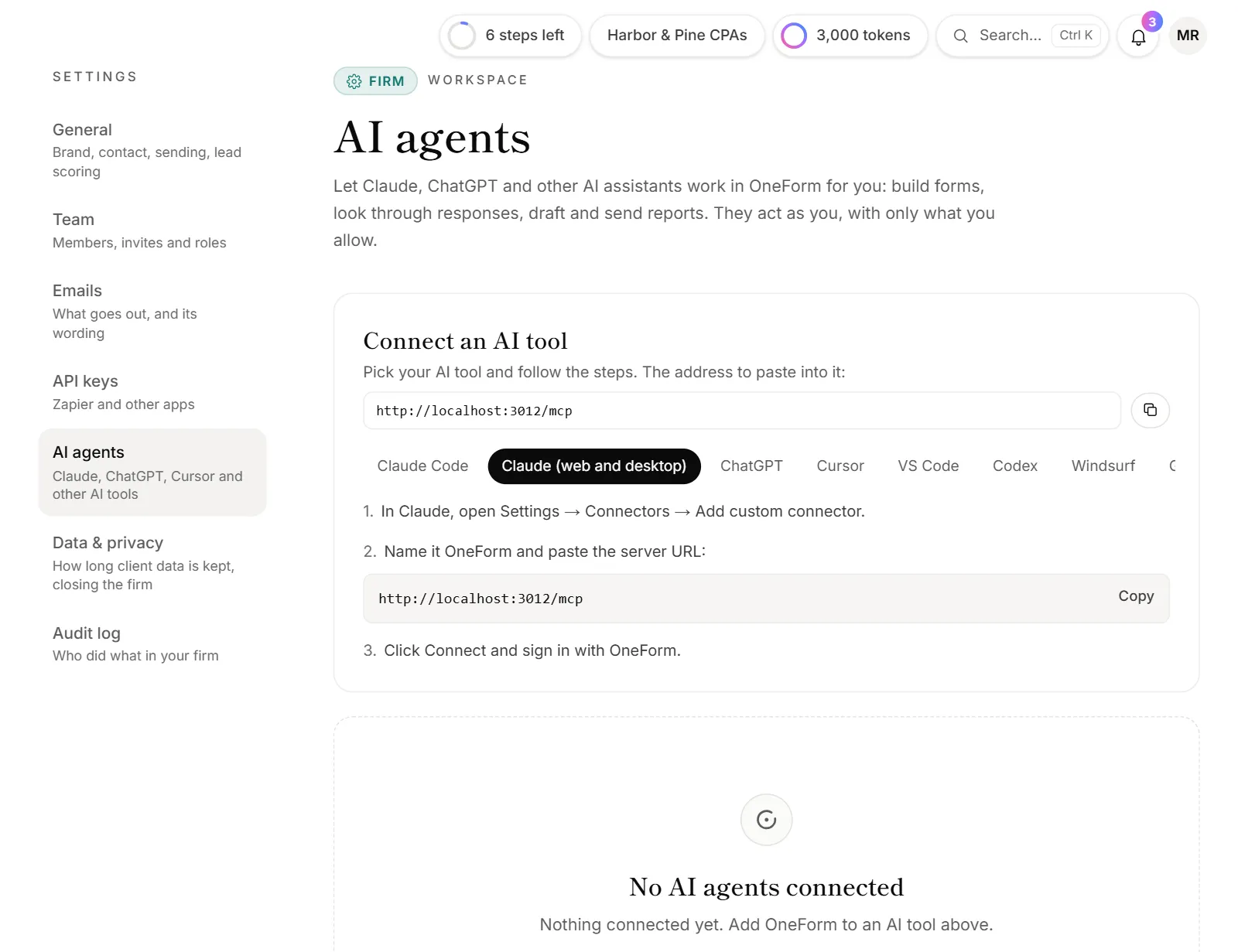
- Go to Settings → AI agents.
- Under Connect an AI tool, copy the address.
- Pick your tool: Claude Code, Claude (web and desktop), ChatGPT, Cursor, VS Code, Codex, Windsurf or Gemini CLI.
- Follow the steps shown for that tool.
- When the tool asks, sign in with OneForm.
- On the Connect … to OneForm page, pick the Firm, check what the tool may do, and click Allow.
The tool appears under Your connections. For example, in Claude you add OneForm under Settings → Connectors → Add custom connector, paste the address and click Connect.
Tools that can't sign in
Some tools, like Codex, and your own scripts use a personal token instead.
- On Settings → AI agents, under For developers, click New token.
- Name it, tick what it may do, and choose when it Expires after.
- Click Make token.
- Copy the token and paste it into your tool. It's shown only once.
Anyone with the token can do what you allowed, as you. Don't share it in email or chat.
What an agent can do
- Only what you allow, and never more than your role. If your role changes or you leave the firm, your agents change or stop with it.
- Nothing reaches a client without you. Sending or approving a report, publishing a form, emailing a form link, changing a booking or sending leads to your CRM needs Act on clients, and the agent must confirm each one first.
- Plan limits and OneAI Tokens apply as they do in OneForm.
- Everything is recorded. The Activity list shows what agents did (never what they read), and it's all in the audit log.
What an agent reads goes to the AI tool you use, under that tool's terms.
Firm rules
Owners and admins set rules for every agent in the firm, under Firm rules:
- AI agents can connect: turn off to stop every agent at once. They work again when it's back on.
- Agents can act on clients: allows the client-facing actions above, each still confirmed.
- Agents can read client data: responses, reports, leads and bookings. Off, agents can still build forms and workflows.
Owners and admins also see the team's connections and everyone's activity.
Disconnect an agent
Under Your connections, click Disconnect next to the tool, then Disconnect to confirm. It stops working right away. Signing out everywhere or changing your password disconnects your agents too.
For developers, the server and its tools are documented in the MCP developer docs.
Why does my connection say "Paused"?
Your firm's plan doesn't include AI agents, so OneForm refuses them for now. The connection stays, and works again once your firm is on a plan that includes them.
Why can't my agent send a report?
The token or sign-in doesn't include Act on clients, your role can't send reports, or your firm turned off Agents can act on clients. Connect again with Act on clients ticked, or ask an owner or admin.