Some emails should come from you, not from OneForm: a personal follow-up, a thank-you, a note to a partner. The Send an email from Outlook action sends from your own mailbox and saves a copy in your Sent Items, so replies land in your inbox.
Before you start
You need a Microsoft 365 work or school account, or an Outlook.com account, with an Outlook mailbox. OneForm only asks to send email. It can't read your mailbox.
Connect Outlook
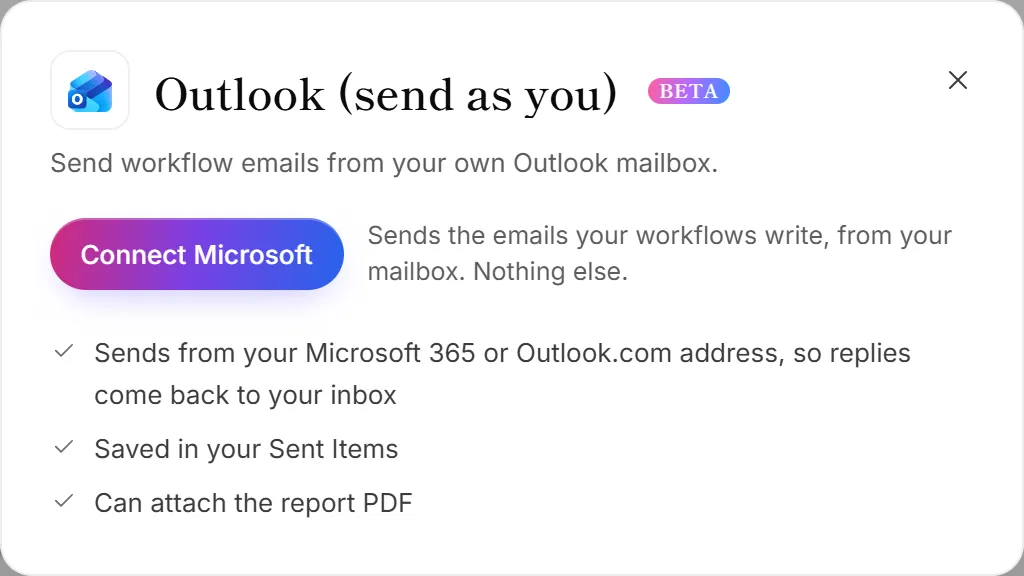
- Go to Integrations. The Outlook panel opens.
- Click Connect Microsoft.
- Sign in with the mailbox you want to send from and accept the permission Microsoft shows.
- You're back in OneForm, and the Microsoft account is connected.
If your Microsoft account is already connected for something else, click Allow next to Outlook mail on its card instead.
Send an email from a workflow
- Open Workflows and open the workflow you want.
- Click + (Add an action) and choose Send an email from Outlook.
- Under Microsoft account, choose the mailbox to send from.
- Fill in To, Subject and Message. Use + Insert answer to add the client's email, name or any answer.
- Turn Add your sign-off (Settings) and Attach the report PDF on or off.
- Click Test it, then Turn on (or Save and turn on).
The email goes as a plain message, like one you'd write in Outlook. Blank lines start new paragraphs.
Good to know
- OneForm's own emails don't change. Report emails, confirmations and reminders still come from OneForm. This action is only for emails you write in a workflow. To send OneForm's own emails from your firm's address, see Send from your own domain.
- Tests come to you. Test it sends the email to you as a preview, not to the client.
- Unsubscribes are respected. People who unsubscribed or whose address bounced are skipped, as with OneForm's own emails.
- Disconnecting the Microsoft 365 card removes the whole Microsoft account, so Excel, OneDrive, Outlook Calendar and Teams stop working for it too. To also remove OneForm from your Microsoft account, go to myapps.microsoft.com.
Why did the email fail to send?
- The report isn't approved yet. With Attach the report PDF on, put the action after Wait for approval.
- The account has no mailbox. Connect an account with an Outlook or Exchange Online mailbox.
- The PDF is too big for Outlook. Turn off Attach the report PDF, or use OneForm's own Send an email action.
- Microsoft access was removed or expired. The Microsoft 365 card moves to Needs attention; click Reconnect.