Google Drive keeps a copy of every report PDF where your firm already files client work. Save them automatically from a workflow, or send the finished reports you already have from the Reports page.
Connect Google Drive
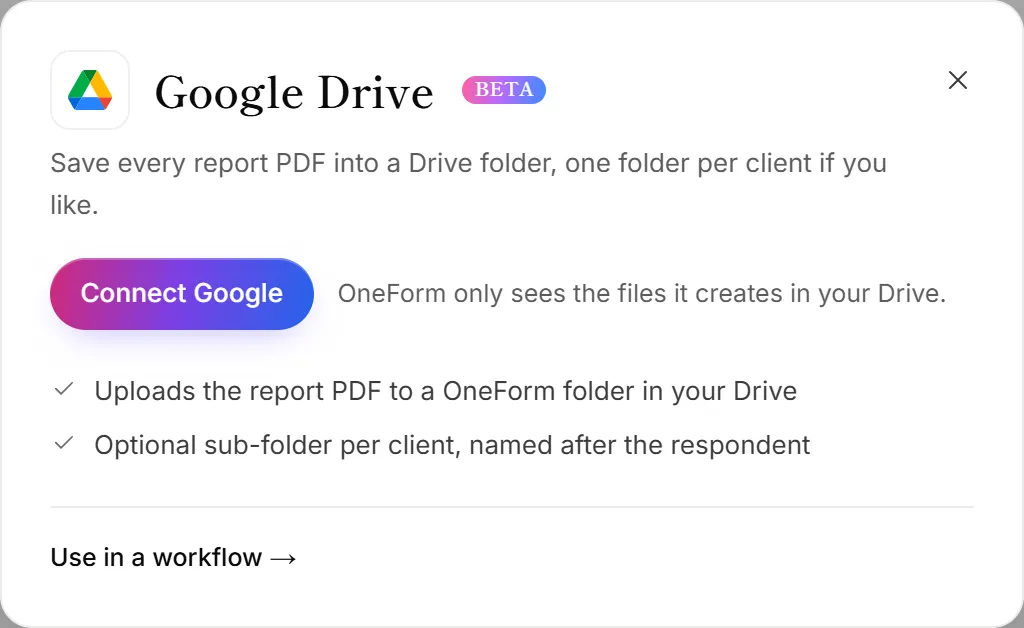
- Go to Integrations. The Google Drive panel opens.
- Click Connect Google.
- Choose your Google account and allow the access Google asks for.
- You're back in OneForm, and the Google account is connected.
If your Google account is already connected for something else, click Allow next to Drive on its card instead.
Save each report from a workflow
- Open Workflows and open the workflow you want, or start one from the Archive approved reports in Drive recipe.
- Click + (Add an action) and choose Save the PDF to Google Drive. To save the approved version, put it after Wait for approval.
- Under Google account, choose the account.
- Name the Folder in your Drive. OneForm creates it if it doesn't exist.
- Leave A sub-folder per client on to file each PDF in a folder named after the client.
- Set the File name. Use + Insert answer to add the report title or the client's name. OneForm adds .pdf.
- Click Test it, then Turn on (or Save and turn on).
Send the reports you already have
Owners and admins can copy finished reports to Drive from the Reports page.
- Go to Reports → All reports. Filter by form or status if you only want some.
- Click Send All Reports to Google Drive. To send just one, open its menu and choose Send to Google Drive.
- Check what's being sent and click Send (for example Send 12 reports).
They're filed as OneForm reports › form name › client name. Only approved, scheduled and sent reports go, since a draft can still change. Reports already in Drive are skipped, so nothing is copied twice.
What OneForm can see
Only the folders and files OneForm creates. It can't open anything else in your Drive. The access is stored encrypted.
Disconnect Google Drive
On the Integrations page, click Manage on the Google card, then Disconnect. This removes the whole Google account, so Sheets, Calendar and Chat stop working for it too. OneForm also gives up its access in your Google account, unless another OneForm firm still uses that account. The PDFs stay in your Drive.
Why is a report missing from Drive?
- You sent from the Reports page while it was still a draft. Only approved, scheduled and sent reports go from there.
- The form has no report. Save the PDF to Google Drive skips submissions without one.
- Google access was removed or expired. The Google card moves to Needs attention; click Reconnect.